> ## Documentation Index
> Fetch the complete documentation index at: https://docs.trycrust.ai/llms.txt
> Use this file to discover all available pages before exploring further.
# Welcome to Crust AI Documentation
> Unlock the power of your data. Build interactive, secure, and shareable mini-applications in minutes.
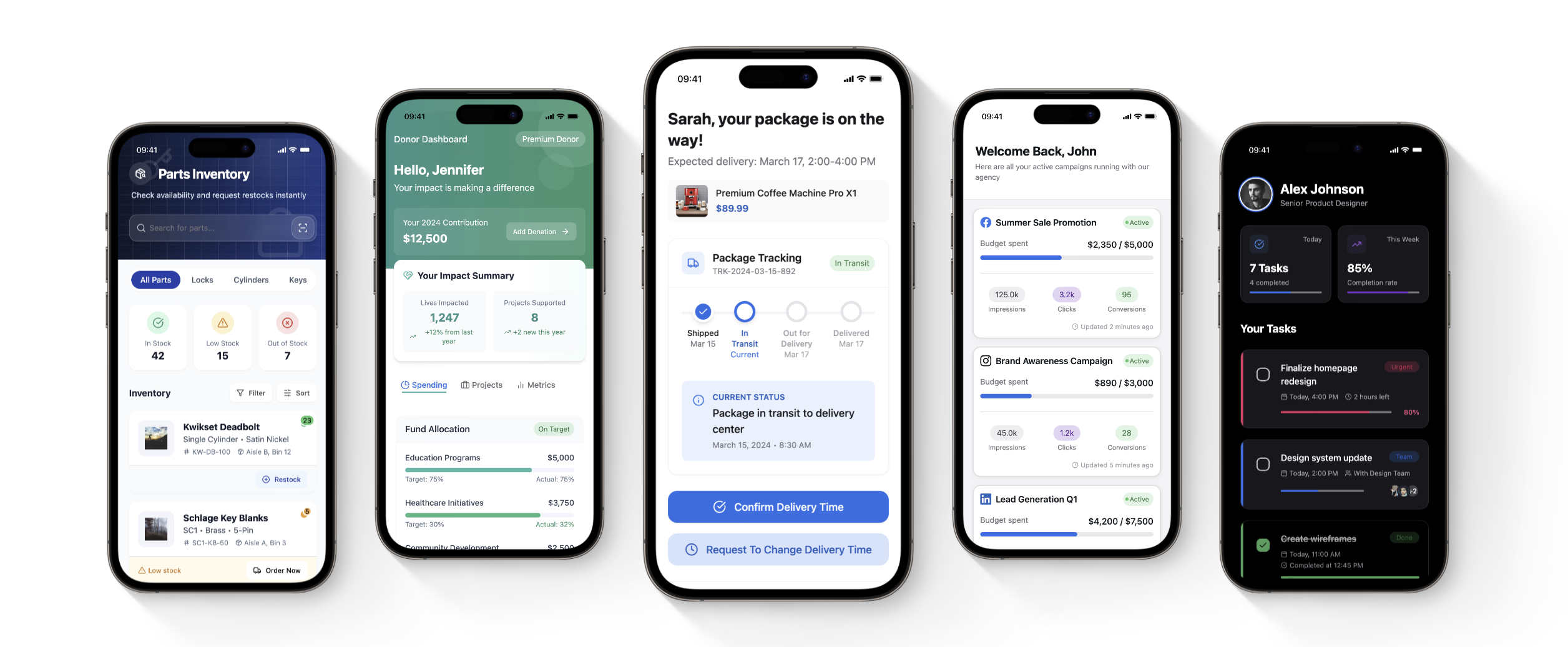 # Welcome to Crust AI! ✨
Transform your **(Airtable/Notion/Monday.com/Google Sheets)** data into powerful, **interactive mini-applications** – we call them **Snippets**. Share secure, live data views with clients, partners, or team members without complex coding or granting full base access.
This documentation will guide you from basic concepts to building sophisticated, interconnected applications.
## Get Started Fast 🚀
Dive right in and understand the fundamentals of Crust AI.
What is Crust AI and why use it with my data?
Learn the essential terms: Snippets, Views, Shareable URLs.
Follow our hands-on guide to create your first interactive view.
## Core Building Blocks 🧱
Master the tools and concepts for constructing your snippets.
Navigate your primary workspace for creating and customizing.
Choose the right structure: Single Item vs. Multiple Items.
Pinpoint the specific record for your Single Item snippet.
Filter and sort the list of records for Multiple Item snippets.
## Master Your Data Flow 🛡️
Control exactly who sees what data within your snippets.
Learn the difference between static filters and dynamic permissions.
Implement secure, personalized data views for each user.
## Design & Customize 🎨
Tailor the look and feel of your snippets for a professional, branded experience.
Use natural language prompts to modify design and layout.
Ensure your snippets look great on any device.
## Add Interactivity & Automations ⚡
Transform snippets from read-only views into functional mini-apps.
Allow users to edit fields directly within the snippet.
Connect snippet buttons to Airtable, Make, Zapier workflows.
## Share & Integrate 🔗
Distribute your snippets effectively and integrate them into your workflows.
Master the components of snippet URLs for dynamic sharing.
Create Airtable buttons to view or share snippets easily.
Automate snippet distribution in your workflows.
## Build Applications 🧩
Connect multiple snippets together to create comprehensive user experiences.
Understand the benefits of creating multi-snippet applications.
Implement buttons and contextual links to guide users.
# Welcome to Crust AI! ✨
Transform your **(Airtable/Notion/Monday.com/Google Sheets)** data into powerful, **interactive mini-applications** – we call them **Snippets**. Share secure, live data views with clients, partners, or team members without complex coding or granting full base access.
This documentation will guide you from basic concepts to building sophisticated, interconnected applications.
## Get Started Fast 🚀
Dive right in and understand the fundamentals of Crust AI.
What is Crust AI and why use it with my data?
Learn the essential terms: Snippets, Views, Shareable URLs.
Follow our hands-on guide to create your first interactive view.
## Core Building Blocks 🧱
Master the tools and concepts for constructing your snippets.
Navigate your primary workspace for creating and customizing.
Choose the right structure: Single Item vs. Multiple Items.
Pinpoint the specific record for your Single Item snippet.
Filter and sort the list of records for Multiple Item snippets.
## Master Your Data Flow 🛡️
Control exactly who sees what data within your snippets.
Learn the difference between static filters and dynamic permissions.
Implement secure, personalized data views for each user.
## Design & Customize 🎨
Tailor the look and feel of your snippets for a professional, branded experience.
Use natural language prompts to modify design and layout.
Ensure your snippets look great on any device.
## Add Interactivity & Automations ⚡
Transform snippets from read-only views into functional mini-apps.
Allow users to edit fields directly within the snippet.
Connect snippet buttons to Airtable, Make, Zapier workflows.
## Share & Integrate 🔗
Distribute your snippets effectively and integrate them into your workflows.
Master the components of snippet URLs for dynamic sharing.
Create Airtable buttons to view or share snippets easily.
Automate snippet distribution in your workflows.
## Build Applications 🧩
Connect multiple snippets together to create comprehensive user experiences.
Understand the benefits of creating multi-snippet applications.
Implement buttons and contextual links to guide users.