> ## Documentation Index
> Fetch the complete documentation index at: https://docs.trycrust.ai/llms.txt
> Use this file to discover all available pages before exploring further.
# Adding Interactive Elements to Update Data
> Learn how to make your Crust AI snippets interactive, allowing users to edit data or trigger actions via the AI prompt.
**Make Your Snippets Interactive**\
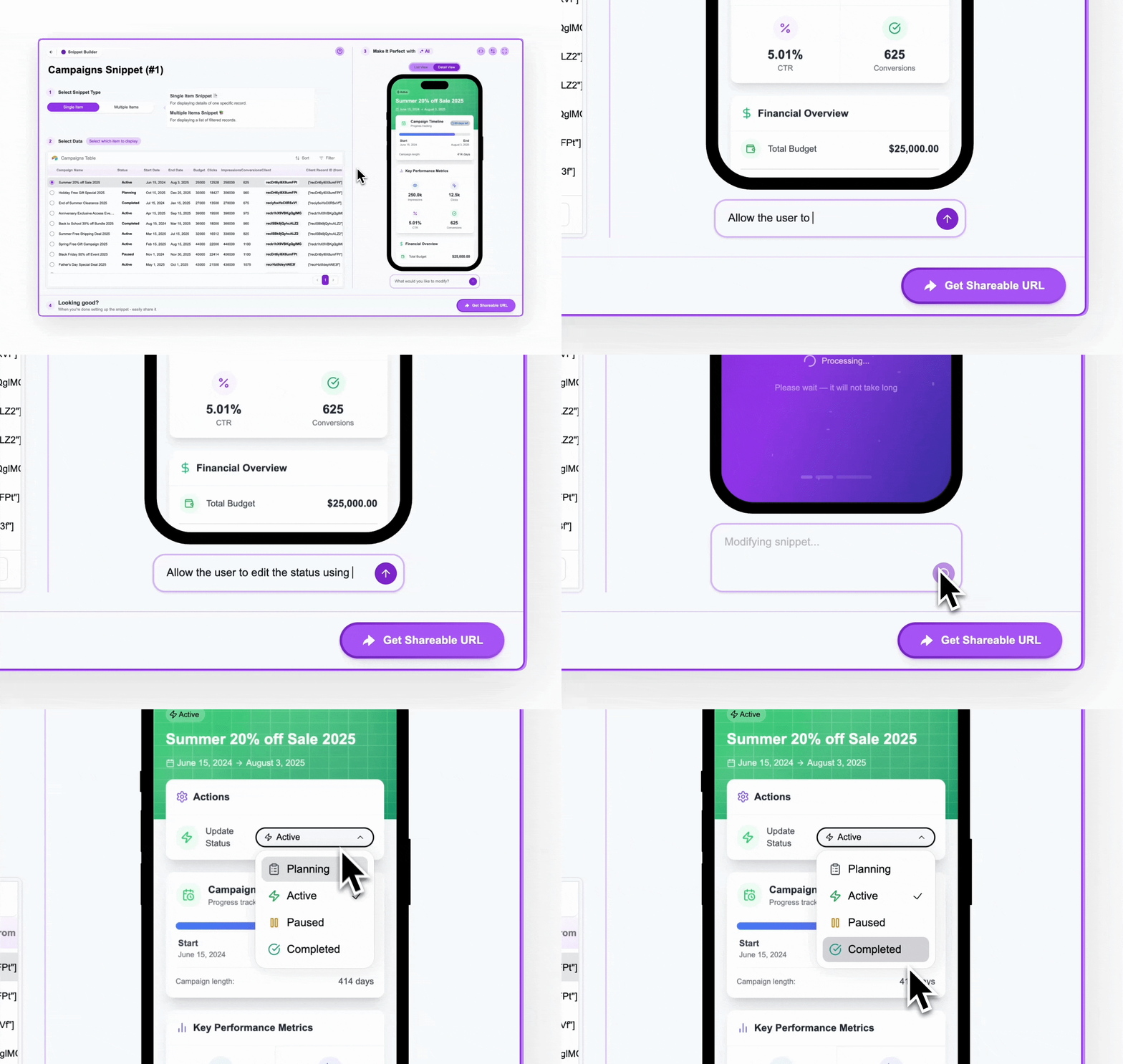
While changing the visual design is a key part of customizing snippets, the AI prompt in Step 3 plays another crucial role: **making your snippets interactive**.
## Beyond Read-Only: Enabling Interaction
By default, snippets are read-only displays of your data. They show live information, but end-users cannot typically modify the data directly through the snippet interface.
However, Crust AI allows you to add interactive elements, transforming your snippets from simple data viewers into functional mini-apps that can do things like:
### Interactive Capabilities
* **Edit Specific Fields:** Allow users to change the value of certain fields within a record directly from the snippet (e.g., update a status, check a box, edit value).
* **Trigger Buttons & Automations:** Add buttons within the snippet that, when clicked, execute the action of a Button field in the corresponding record (often used to trigger automations, webhooks, or scripts).
* **Implement Conditional Logic:** Make interactive elements appear or behave differently based on the data in the current record.
***
## Adding Interactivity via the AI Prompt
Just like visual customization, adding interactivity is achieved through natural language instructions in the **AI Prompt** input field (located below the phone preview in Step 3).
You simply describe the functionality you want to add:
#### Field Editing
```
Add a dropdown menu to allow the user to change the 'Status' field.
```
**(This makes only the Status field editable via a dropdown, keeping other fields read-only).**
```
Make the 'Notes' field editable using a text input.
```
```
Add a checkbox to check/uncheck the 'Approved' field.
```
#### Triggering Actions
```
Add a button labeled 'Send Email' that triggers the action of the 'Send Email' button field.
```
```
Add a button that when pressed, the URL of the 'Generate Report' button field will be triggered.
```
#### Conditional Interaction
```
If the 'Status' is 'Pending Approval', add a button titled 'Approve Campaign' that changes the 'Status' field to 'Approved' AND triggers the URL of the 'Notify Client' button field.
```
*(This demonstrates combining a field update and an action trigger in one interaction, conditional on the current status).*
***
## Snippet-Specific Functionality (e.g., Filtering the View)
The prompt can also add interactive elements that control the snippet's view *itself*, rather than directly modifying data. For example:
```
Add filter buttons at the top that allow the user to filter the list by the 'Status' field.
```
```
Add a toggle switch to hide/show records where 'Priority' is 'Low'.
```
**Important Distinction**\
These prompt-added filters operate *only on the data already loaded into the snippet*. They filter the records that have *already passed* the static Filters and user-based Permissions set in Step 2. They do not change the underlying data selection rules defined in Step 2. Think of them as convenient UI controls for the end-user to further refine the *currently visible* list.
[Learn more about setting Filters and Sorting](/chapters/selecting-which-data-to-display/setting-filters-and-sorting-for-multiple-items-snippets).
***
By instructing the AI prompt, you can easily add powerful interactive capabilities to your snippets, allowing end-users to not only view but also interact with and update your data in a controlled and intuitive way.
 ***
## Snippet-Specific Functionality (e.g., Filtering the View)
The prompt can also add interactive elements that control the snippet's view *itself*, rather than directly modifying data. For example:
```
Add filter buttons at the top that allow the user to filter the list by the 'Status' field.
```
```
Add a toggle switch to hide/show records where 'Priority' is 'Low'.
```
***
## Snippet-Specific Functionality (e.g., Filtering the View)
The prompt can also add interactive elements that control the snippet's view *itself*, rather than directly modifying data. For example:
```
Add filter buttons at the top that allow the user to filter the list by the 'Status' field.
```
```
Add a toggle switch to hide/show records where 'Priority' is 'Low'.
```