> ## Documentation Index
> Fetch the complete documentation index at: https://docs.trycrust.ai/llms.txt
> Use this file to discover all available pages before exploring further.
# Understanding the Permission Mechanism
> Learn how Crust AI controls data access in Multiple Items Snippets using different permission types.
**Control Who Sees What**\
For [Multiple Items Snippets](/chapters/building-and-understanding-snippets/understanding-snippet-types), which display a list of records from your table, you often need fine-grained control over *which* records each viewer is allowed to see.
We've already covered how [**Static Filters**](/chapters/selecting-which-data-to-display/setting-filters-and-sorting-for-multiple-items-snippets) allow you to define broad conditions that apply to *everyone* viewing the snippet. However, if you need to filter the list of records presented based on the *identity* of the person viewing the snippet (e.g., a client should only see *their* projects), Crust AI's **Permission** mechanism is the solution.
## Permission Types
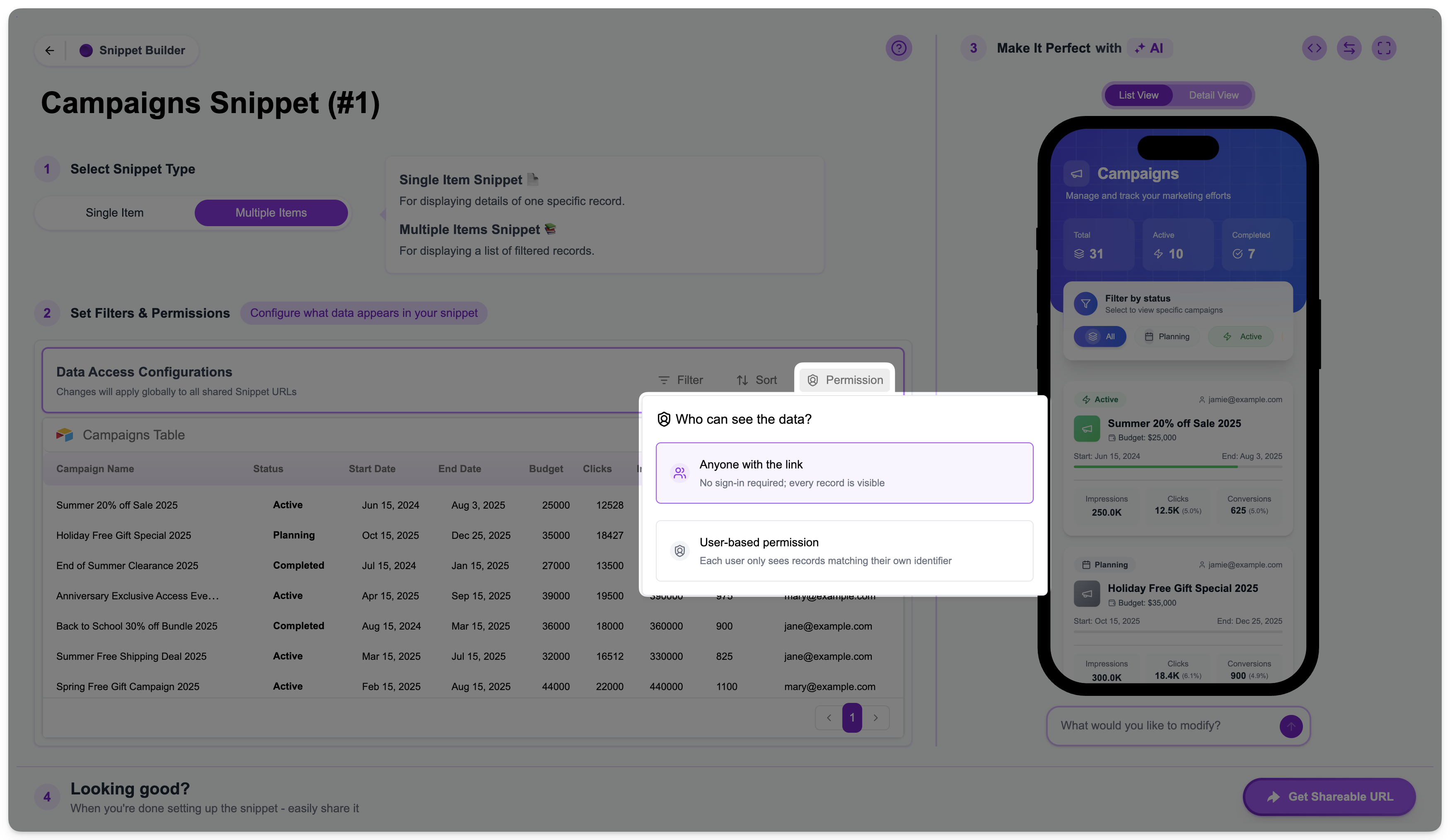
In Step 2 of the Snippet Builder, under "Data Access Configurations," you'll find the **Permission** tab. Crust AI offers two types of permissions for Multiple Items Snippets:
### Anyone with the link
* This is the **default** setting.
* No dynamic permission filtering is applied based on the viewer's identity.
* Anyone who has the Shareable URL can see *all* records in the snippet that meet any **static filter** conditions you've set. No sign-in or identifier input is required to view the snippet.
### User-based permission
* This setting enables **dynamic record-level filtering** based on the viewer's identity.
* Each user will only see records where a specific field in the record (the "permission field" you configure) matches an identifier value provided for that user.
* This is how you create personalized data views using a single snippet URL.
***
## How User-Based Permission Works Behind the Scenes
When you enable "User-based permission", you select a field in your table that holds a unique identifier for your users (e.g., an email address, a client ID number, a custom user ID field, etc).
When a viewer attempts to access the snippet's URL, Crust AI needs to know *who* they are. This "permission value" (the viewer's identifier) can be obtained in one of two ways:
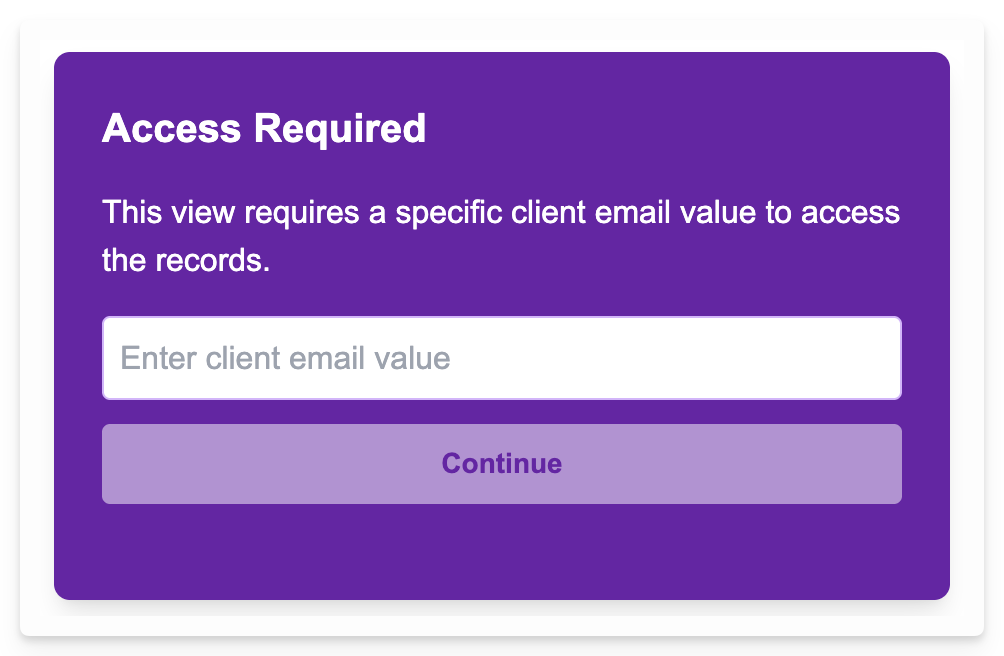
If the snippet URL doesn't already contain the permission value, the viewer will be presented with a prompt asking them to enter their identifier (for example, their email address).
The Shareable URL can be constructed to include the permission value as a URL parameter (e.g., `.../view/multi?p=jamie@example.com`). This acts like a "magic link" and automatically sets the permission value for the specific user without prompting them for input.
Once Crust AI has the viewer's permission value, it dynamically applies a filter: it retrieves only the records where the value in the "permission field" you selected matches the provided permission value.
This ensures that while the snippet structure and general design remain the same for everyone, the *data* they see is uniquely filtered for their identity. This is fundamentally different from static filters, which apply the same filter criteria to all viewers.
## How to Set User-Based Permission
To learn how to set up and configure User-based Permissions in detail, see: [User-Based Permission Explained](/chapters/controlling-data-access/user-based-permission-explained)
 ### Anyone with the link
* This is the **default** setting.
* No dynamic permission filtering is applied based on the viewer's identity.
* Anyone who has the Shareable URL can see *all* records in the snippet that meet any **static filter** conditions you've set. No sign-in or identifier input is required to view the snippet.
### User-based permission
* This setting enables **dynamic record-level filtering** based on the viewer's identity.
* Each user will only see records where a specific field in the record (the "permission field" you configure) matches an identifier value provided for that user.
* This is how you create personalized data views using a single snippet URL.
***
## How User-Based Permission Works Behind the Scenes
When you enable "User-based permission", you select a field in your table that holds a unique identifier for your users (e.g., an email address, a client ID number, a custom user ID field, etc).
When a viewer attempts to access the snippet's URL, Crust AI needs to know *who* they are. This "permission value" (the viewer's identifier) can be obtained in one of two ways:
### Anyone with the link
* This is the **default** setting.
* No dynamic permission filtering is applied based on the viewer's identity.
* Anyone who has the Shareable URL can see *all* records in the snippet that meet any **static filter** conditions you've set. No sign-in or identifier input is required to view the snippet.
### User-based permission
* This setting enables **dynamic record-level filtering** based on the viewer's identity.
* Each user will only see records where a specific field in the record (the "permission field" you configure) matches an identifier value provided for that user.
* This is how you create personalized data views using a single snippet URL.
***
## How User-Based Permission Works Behind the Scenes
When you enable "User-based permission", you select a field in your table that holds a unique identifier for your users (e.g., an email address, a client ID number, a custom user ID field, etc).
When a viewer attempts to access the snippet's URL, Crust AI needs to know *who* they are. This "permission value" (the viewer's identifier) can be obtained in one of two ways: